Install the Full Distribution on Oracle WebLogic Application Server
This section will describe how you can install Camunda and its components on Oracle WebLogic.
Reading this Guide
This guide uses a number of variables to denote common path names and constants.
$WLS_DOMAIN_HOMEpoints to the Oracle WebLogic application server domain directory (typically something like/opt/oracle/WebLogic/domains/mydomain).$PLATFORM_VERSIONdenotes the version of Camunda you want to or have installed, e.g.7.X.Y.$WLS_DISTRIBUTIONrepresents the downloaded Camunda distribution for the Oracle WebLogic Application Server, e.g.,camunda-ee-oracle-wls-$PLATFORM_VERSION.zip.
The distribution is available at the Camunda enterprise release page. You will be asked to enter the credentials you received during the trial or subscription process.
Setup
Before you can install the Camunda components, you need to perform a number of required setup steps.
Resource Configuration
Camunda 7 requires a set of resources that need to be configured at the application server level:
- One or multiple datasources to be used by the engine.
- A work manager for the job executor.
Create the Database Schema and Tables
In the default configuration of the distribution, the database schema and all required tables are automatically created in an H2 database when the engine starts up for the first time. If you do not want to use the H2 database, you have to
- Create a database schema for Camunda yourself.
- Install the database schema to create all required tables and default indices using our database schema installation guide.
When you create the tables manually, then you have to configure the engine to not create tables at startup by setting the databaseSchemaUpdate property to false (or, in case you are using Oracle, to noop). In WebLogic, this is done in the bpm-platform.xml, located in the $WLS_HOME\modules\camunda-oracle-weblogic-ear-$VERSION.ear\camunda-oracle-weblogic-service.jar\META-INF\ folder.
JDBC/Datasource Configuration
Camunda uses one or multiple process engines. Use the Oracle WebLogic Server Administration Console for the configuration of the datasources. The JNDI name of the datasource must be equal to the name used in the datasource-Element of the process engine(s) configured in the bpm-platform.xml.
Default JNDI Name
The default JNDI name is jdbc/ProcessEngine
The following screenshot shows the mandatory configuration of a datasource for Camunda:
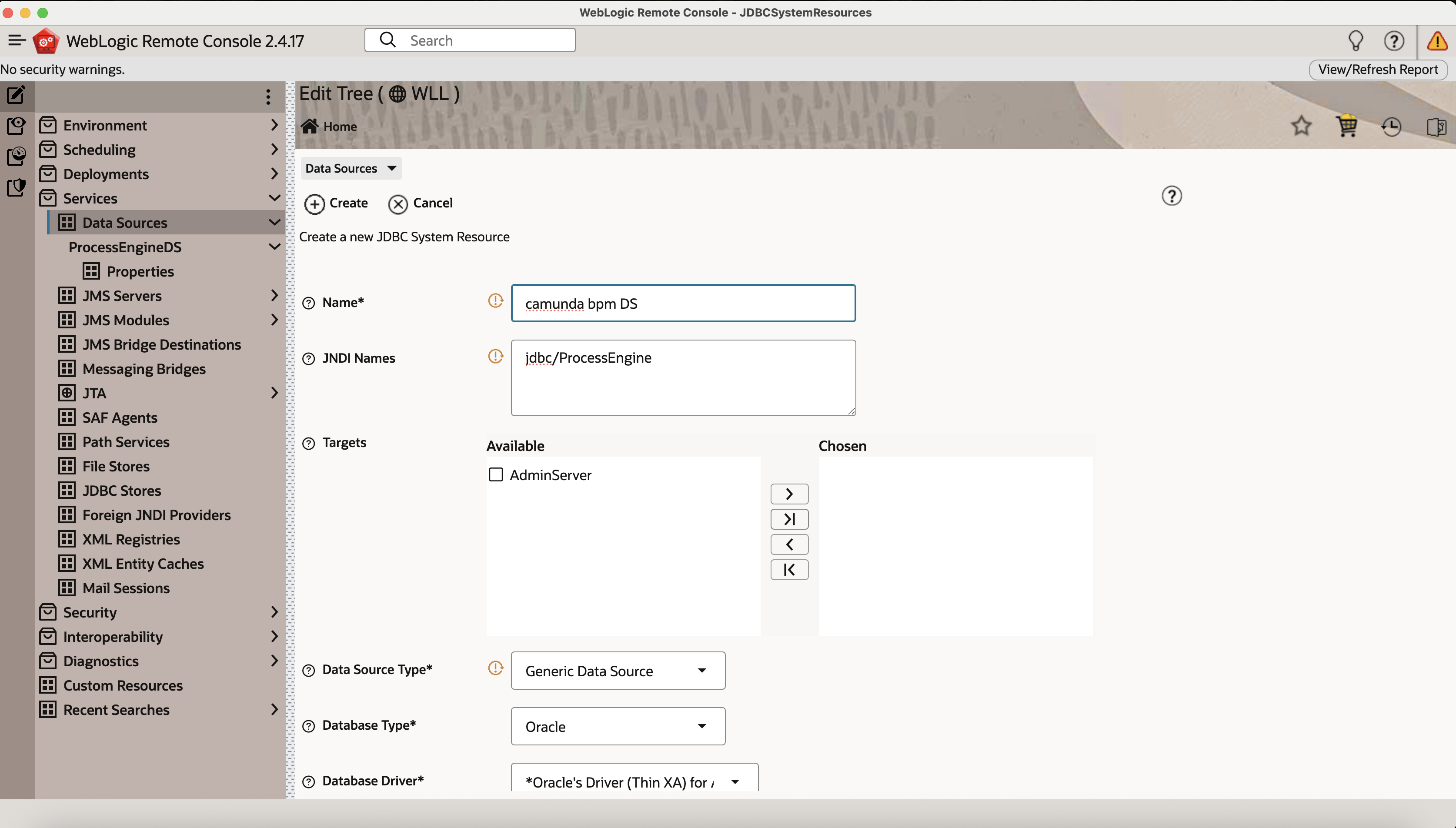
In this section we explain how to add a datasource using the WebLogic Remote Console:
- Open the WebLogic Remote Console.
- Switch to “Edit Tree”.
- Navigate to the “Services / Data Sources” page.
- Click the “New” Button.
- On the next page, enter a name for the datasource.
- Enter the required JNDI Name “jdbc/ProcessEngine”, which is mandatory for Camunda.
- Select available target.
- In “Data Source Type” select “Generic Data Source”.
- Select your database type in “Database Type” field.
- Fill in your database credentials: “Database Name”, “Host Name”, “Port”, “Database User Name” and “Password”.
- Click “Create” button to save datasource.
- Press “Shopping Card” button and commit your changes.
Note that you can configure multiple datasources used by different process engine instances. See the User Guide for details.
Required Components
The following steps are required to deploy Camunda onto an Oracle WebLogic server.
Install Camunda Domain Libraries
The domain libraries include the Camunda engine and some utility JARs. The domain libraries must be visible to both Camunda as well as all process applications.
The domain libraries can be found in the lib folder of the distribution:
camunda-ee-oracle-wls-$PLATFORM_VERSION.zip
|-- modules/
      |-- lib/  <-- The domain libs
           |-- camunda-engine-$PLATFORM_VERSION.jar
           |-- java-uuid-generator-XX.jar
           |-- mybatis-XX.jar
           |-- ...
      |-- camunda-oracle-weblogic-ear-$PLATFORM_VERSION.ear
The domain libraries must be copied to the $WLS_DOMAIN_HOME/lib folder of your Oracle WebLogic Server installation. Do “NOT” copy it to your $WL_HOME/lib folder.
Restart the Oracle WebLogic Server after this operation.
Use a Custom Location for the Domain Libraries
You can change the location of the domain libraries with the -Dweblogic.ext.dirs
startup option.
Install Camunda Modules
Camunda includes one module in the modules folder of the distribution:
camunda-ee-oracle-wls-$PLATFORM_VERSION.zip
|-- modules/
      |-- camunda-oracle-weblogic-ear-$PLATFORM_VERSION.ear
The camunda-oracle-weblogic-ear is a Jakarta EE 8 application providing the Camunda services. It contains an embedded JCA Resource Adapter, the camunda-oracle-weblogic-rar, which provides the jobexecutor service to Camunda 7.
It must be installed to your Oracle WebLogic Application Server.
Install the Camunda Application
In this section, we explain how the camunda-oracle-weblogic-ear module can be installed using the Oracle WebLogic Server Administration Console. The installation process is composed of two steps:
- Install the
camunda-oracle-weblogic-ear-$PLATFORM_VERSION.earEAR file. - Configure the deployment order of
camunda-oracle-weblogic-ear-$PLATFORM_VERSION.earEAR file.
Install the EAR File
First the camunda-oracle-weblogic-ear-$PLATFORM_VERSION.ear RAR file must be installed:
- Open the WebLogic Remote Console.
- Switch to “Edit Tree”.
- Navigate to the “Deployments / App Deployments” page.
- Click the “New” button.
- Fill in
camunda-bpm-platformin “Name” field. - Select available target.
- Use upload icon in right corner of “Source” field to select the
camunda-oracle-weblogic-ear-$PLATFORM_VERSION.earfrom the modules folder of Camunda for Oracle WebLogic Application Server distribution. - Click “Create” button.
- Press “Shopping Card” button and commit your changes.
Heads Up!
The names of the JNDI Bindings for Camunda Services consist of the name of the enterprise application deployment.
Please note: If you change the name of the enterprise application deployment, the JNDI names change as well.

- (optional) Configure location of the bpm-platform.xml file.
Configure the Deployment Order
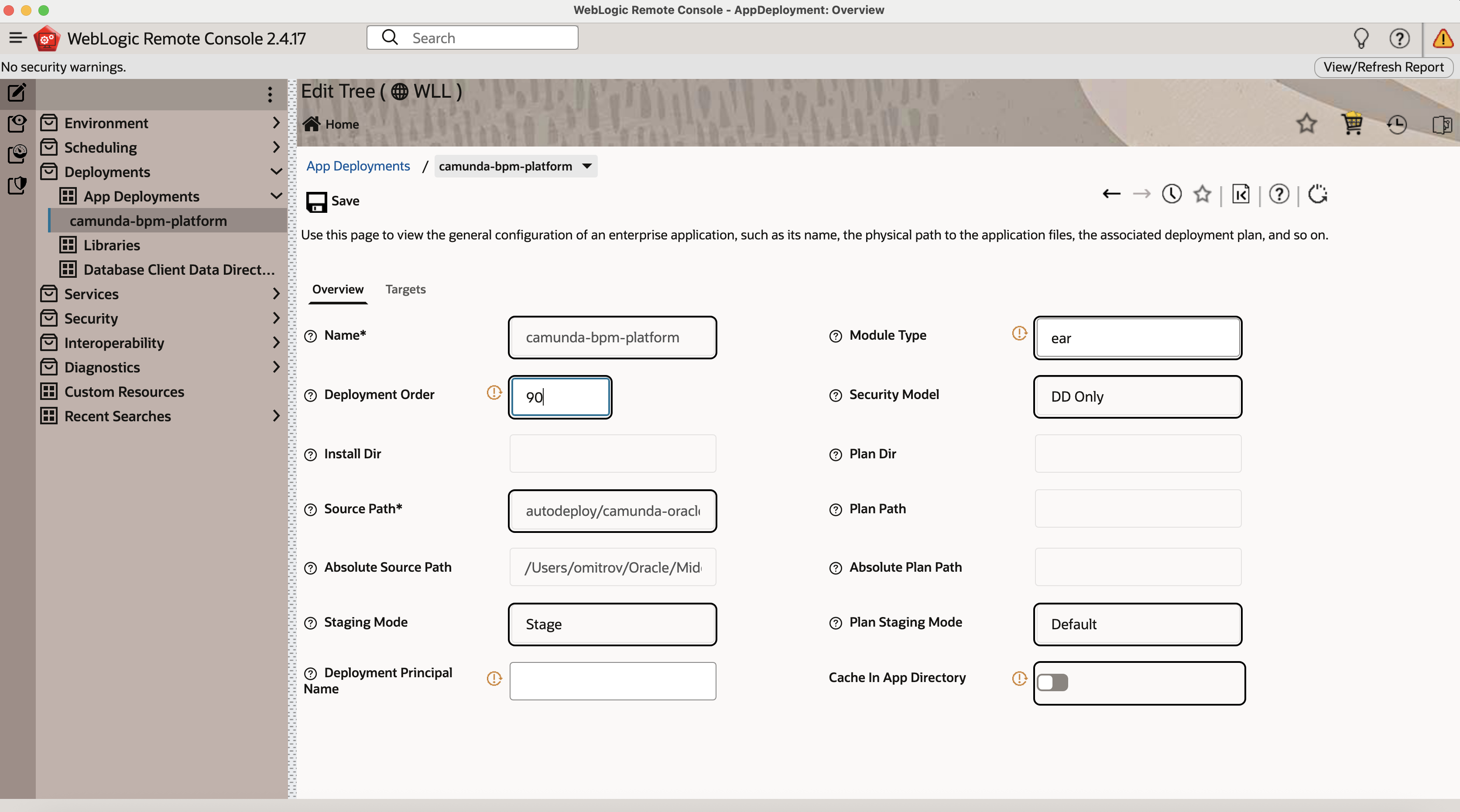
- In the deployment’s configuration screen, change the value of the “Deployment Order” from “100” to “90”, so the Enterprise Application starts before process application deployments.
- Click “Save” to persist the change.
- Press “Shopping Card” button and commit your changes.
Example: Deployment order set to “90”.
Optional Components
This section describes how to install optional components onto an Oracle WebLogic server. None of these are required to work with the core platform.
Cockpit, Tasklist and Admin
The web application archive that contains Camunda Cockpit and Tasklist resides under webapps/camunda-webapp-ee-wls-$PLATFORM_VERSION.war in the Oracle WebLogic Application Server distribution archive.
In this section we explain how to install the WAR file using the WebLogic Remote Console:
- Open the WebLogic Remote Console.
- Switch to “Edit Tree”.
- Navigate to the Deployments / App Deployments screen.
- Click the “New” button.
- Fill in
camunda-webappin “Name” field. - Select available target.
- Use upload icon in right corner of “Source” field to select the
camunda-webapp-ee-wls-$PLATFORM_VERSION.warfrom the modules folder of Camunda for Oracle WebLogic Application Server distribution. - (optional) If you want to start your application after deployment select “Start Application” option in “On Deployment” field.
- Click “Create” button.
- Press “Shopping Card” button and commit your changes.
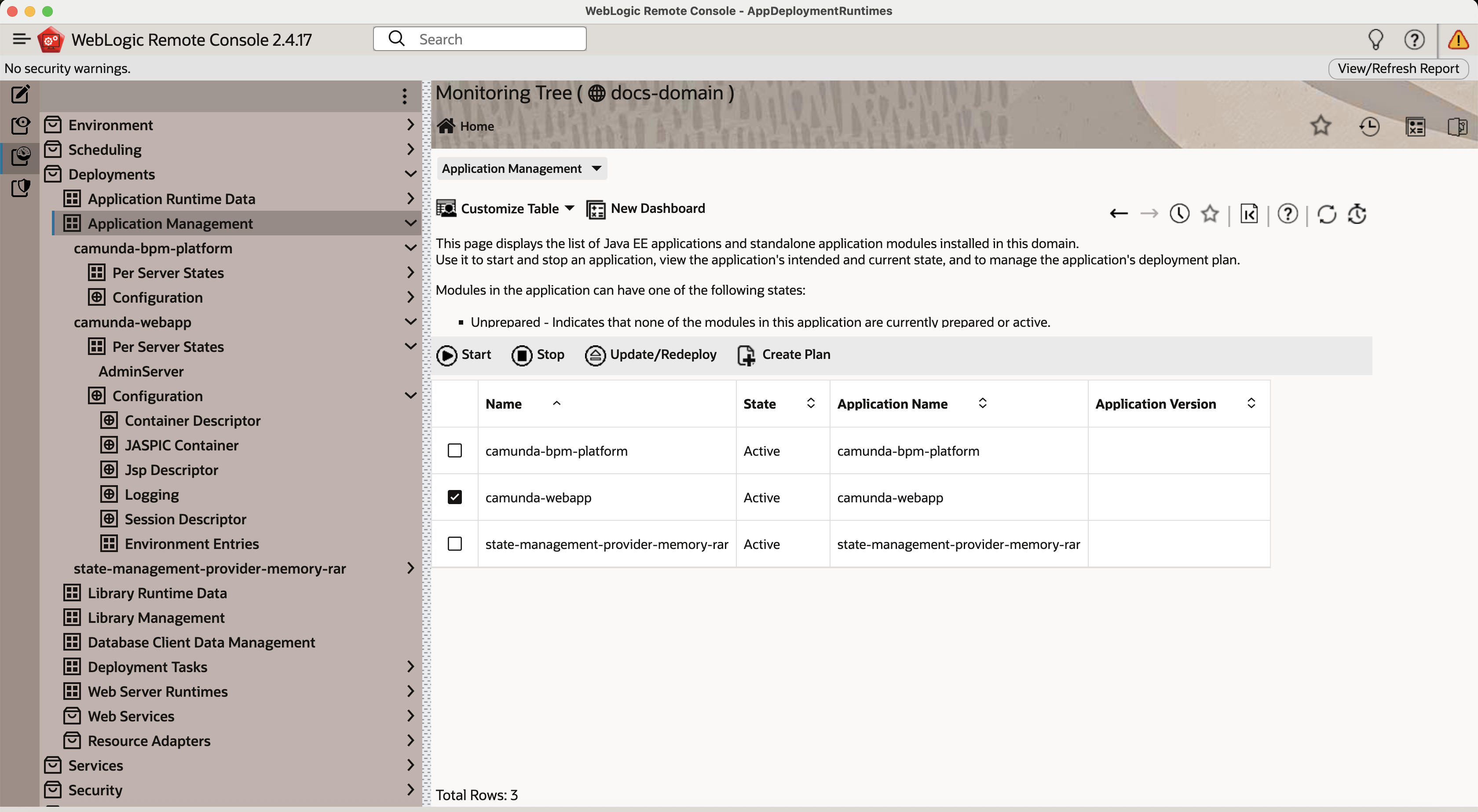
After completing the wizard, the Cockpit and Tasklist should be accessible on the default context path /camunda. In some situations, you also have to start the web application manually:
- Open the WebLogic Remote Console.
- Switch to “Monitoring Tree”.
- Navigate to the Deployments / Application Management screen.
- Select checkbox in row with “camunda-webapp”.
- Click “Start” button.
You can check if everything went well by accessing Cockpit, Tasklist and Admin via /camunda/app/cockpit, /camunda/app/tasklist and /camunda/app/admin or under the context path you configured.
REST API
The Camunda REST API WAR file resides under webapps/camunda-engine-rest-$PLATFORM_VERSION-wls.war in the Oracle WebLogic Application Server distribution archive.
In this section we explain how to install the WAR file using the WebLogic Remote Console:
- Open the WebLogic Remote Console.
- Switch to “Edit Tree”.
- Navigate to the Deployments / App Deployments screen.
- Click the “New” button.
- Fill in
camunda-restin “Name” field. - Select available target.
- Use upload icon in right corner of “Source” field to select the
camunda-engine-rest-$PLATFORM_VERSION-wls.warfrom the modules folder of Camunda for Oracle WebLogic Application Server distribution. - (optional) If you want to start your application after deployment select “Start Application” option in “On Deployment” field.
- Click “Create” button.
- Press “Shopping Card” button and commit your changes.
After completing the wizard, the REST API should be successfully installed on the application server. The context root for the REST API is /engine-rest by default. In some situations, you also have to start the web application manually from the Monitoring Tree Deployments / Application Management screen.